Exodus - R6 Lite
Never test anything on the shooting range, in DM/TDM, or with bots of any kind. Keep the game's settings at their defaults.
Before you start
- Official Windows 10 or 11, Home or Pro (1909 to 25H2)
- Virtualization on in the BIOS (VT-x, SVM or AMD-V)
- Integrated graphics (APU/iGPU) disabled
- 16 GB RAM or more
- All antivirus turned off
- Windows PIN and password disabled
- Finish the Common setup first
Turn off everything related to security: Windows Defender, the Windows password or PIN, BitLocker, and anything else that protects the system.
Download
Wait to download it until you reach this step.
Set up an overlay
Pick one. Either way, the game must be in Borderless or Windowed mode. Those are the only two display modes supported.
Medal
- Download and install Medal.
- Run Medal as administrator.
- For better FPS, turn off "Capture Clips" in "Clip Settings".
Discord
- Download and install Discord.
- Run Discord as administrator.
- Turn on the settings shown here:
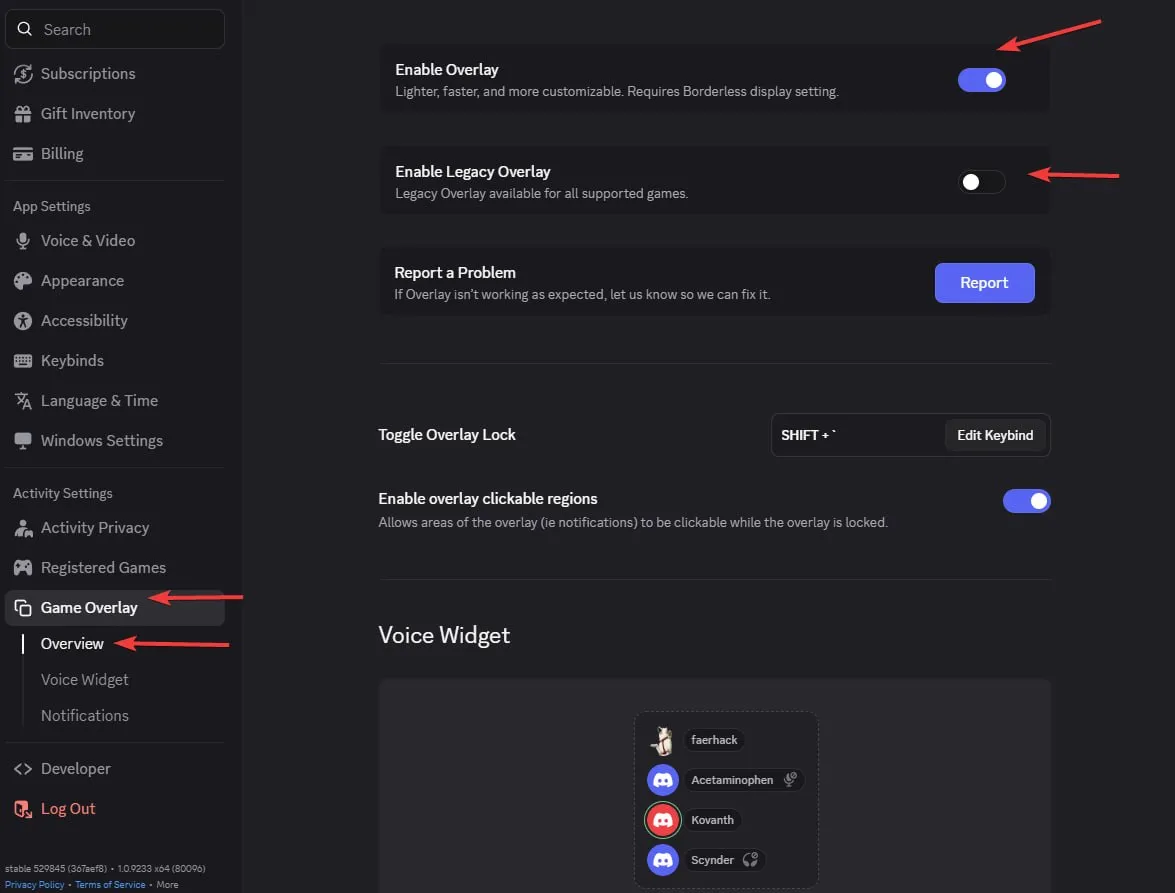
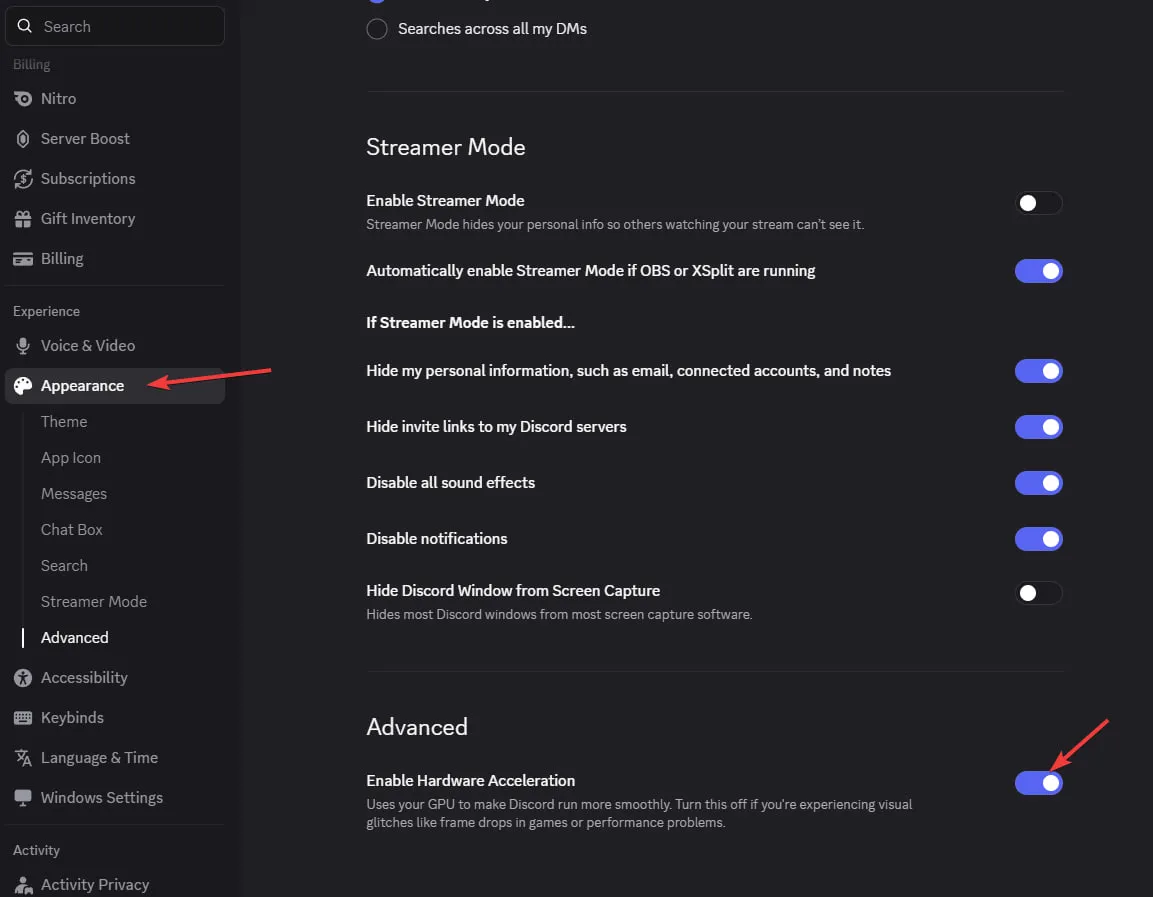
If Discord says "No suitable overlay", follow this:


Launch
Only spoof after launching the Epic Games Store or Ubisoft Connect.
- Run Medal or Discord as administrator.
- Run the loader. Keep focus on the monitor you want the overlay on.
- Paste your license key with the right mouse button, then press Enter.
- The loader asks each launch whether you want the built-in Cleaner and Spoofer. Answer No to the Spoofer.
- When the CMD window closes, launch the game. Wait for the menu to appear in the game's main menu; it can take up to three minutes. Menu key: Insert.
The first time, the loader may reboot your PC a few times and ask you to disable Secure Boot. Open the loader again after each restart and continue. You can turn Secure Boot back on once everything is finished.
If something goes wrong
Find your error message in Exodus troubleshooting.