Unbanned troubleshooting
Find your error message below. The list on the right jumps to it. These cover the Unbanned products.
Error code 0xBAD01
The Discord installation folder was not found.
- Find your Discord installation folder. It is usually
C:\Users\YourName\AppData\Local\DiscordorC:\ProgramData\User\Discord. - Take a screenshot of the folder.
- Contact support and send the screenshot.
Error code 0xBAD02
The Discord overlay failed to start. Restart your PC and try again. This usually fixes it.
Error code 0xBAD04
Restart your PC. If the error is still there after several restarts, contact support.
Error code 0xBAD05
Discord is running as administrator, which can get in the way. Fully close Discord, then open it again without administrator rights.
If the error stays:
Same fix as Error code 0xBAD01.
Failed to connect to Discord overlay
The Discord overlay is turned off or is not running with your game.
- Open the Discord settings.
- Go to "Game Overlay".
- Enable the standard overlay and disable the legacy overlay.
- Turn on the "Overlay and Detection" toggle for your game.
- Check that the overlay shows up in the game when you press the overlay key.
Menu not appearing in the game
Check that the Discord overlay is set up as on the product page. Also check that "Hardware Acceleration" is on in Discord, "User Settings", "Advanced".
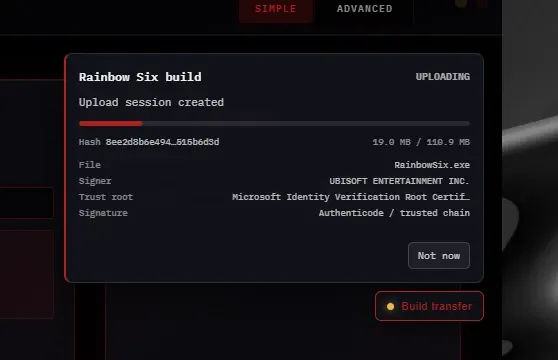
Build transfer panel appears
This is not an error. The loader is uploading your game file RainbowSix.exe so that the product can be matched to your exact game build. It happens once, it is automatic, and only the game file is sent. Let it finish and carry on loading as normal. Not everyone sees this panel.
A healthy upload shows the status "UPLOADING" with "Upload session created" and a moving bar.
configGen worker returned failure code 1
This appears on the "Build transfer" panel. The automatic upload failed, so you need to send your RainbowSix.exe to support by hand.
Find the file
- Press Win+E to open File Explorer.
- Click the address bar at the top.
- Paste this and press Enter:
%localappdata%\Ubisoft\r6s
- The folder opens with
RainbowSix.exeinside. The file is around 100 MB.
If that folder does not exist, find the game folder with Task Manager: follow steps 1 to 4 under "Find the game file you play on" in Mismatched build. Close the game before you copy the file. If you still cannot find it, send support a screenshot of the Task Manager "Details" tab.
Send the file
The file is too large for most direct uploads, and zipping it does not help. Send a link instead.
- Upload
RainbowSix.exeto Google Drive, or to MediaFire, Dropbox or WeTransfer if you already use one of those. Do not rename the file, and do not send a shortcut to it. - Set sharing to "Anyone with the link", then copy the link. On Google Drive: right-click the file, "Share", "General access", "Anyone with the link".
- Contact support, paste the link, and say you got
configGen failure code 1on R6.
After that you are done. You do not need to upload again, and the "Build transfer" panel stops appearing.
If support asks for your Windows username: press Win+R, type cmd and press Enter, then type echo %username% and press Enter. The line it prints is your username.
Mismatched build (The game running is unexpected)
The pop-up says "The game running is unexpected. Please contact support." and has one OK button. The loader is pointed at a game install that is not the one you play on. You can fix this yourself.
Find the game file you play on
- Launch Rainbow Six Siege normally, without the loader, and wait until it reaches the menu.
- Press Ctrl+Shift+Esc to open Task Manager, then open the "Details" tab. On Windows 11 it is on the left, on Windows 10 along the top.
- Find
RainbowSix.exein the list. The Description column reads "Tom Clancy's Rainbow Six Siege". - Right-click it and choose "Open file location".
- In the File Explorer window that opens, click the address bar so the path turns blue, then press Ctrl+C to copy it.
- Close the game. It must be closed when you click "Load".
To find the folder without launching the game: in Steam, right-click the game, "Manage", "Browse local files". In Ubisoft Connect, open the game page, "Properties", "Local files", "Open folder". Ubisoft Connect installs are usually in C:\Program Files (x86)\Ubisoft\Ubisoft Game Launcher\games\Tom Clancy's Rainbow Six Siege and Steam installs in C:\Program Files (x86)\Steam\steamapps\common\Tom Clancy's Rainbow Six Siege, but yours may be on another drive.
Point the loader at that file
- Open the loader and find the field labelled "RAINBOWSIX.EXE PATH".
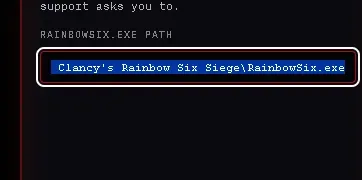
- Click into the field, press Ctrl+A to select everything in it, then Ctrl+V to paste the folder path you copied.
- Add
\RainbowSix.exeto the end, so the line finishes with the file name. For example:D:\Games\Tom Clancy's Rainbow Six Siege\RainbowSix.exe. Keep every\and the apostrophe exactly as Windows shows them. - Click "Load", wait for "Successfully loaded, please launch game", then launch the game as normal.
Only change this field if you have seen this pop-up. If the loader runs fine, leave the path as it is.
If the pop-up still shows, take a screenshot of the pop-up and a screenshot of the loader with the "RAINBOWSIX.EXE PATH" field visible. Contact support, send both, and say "Mismatched build on R6".
Loader shows in the taskbar but no window appears
Your internet provider is most likely blocking the loader's connection to its servers.
- Install Cloudflare WARP, turn on WARP mode, then open the loader again. It is free and does not affect your game ping.
- Or use any VPN: connect to any server and open the loader again. You can disconnect the VPN once the loader has connected.
If neither works, contact support and include a screenshot of the loader screen.
Stuck on "Waiting for connection" or "Waiting for update"
Same fix as Loader shows in the taskbar but no window appears.
Loader crashes or does not open
The loader needs the Visual C Runtimes. Install them as shown in the Common setup, then restart your PC. They do not take effect until you restart.
Lost your loader username or password
Contact support. Your key stays linked to your account.